Adding Team Members and Collaborators
How to Invite a User to Orion 🤝
Collaborating with your team is at the heart of Orion. Let's walk through the process of inviting new members to your workspace.
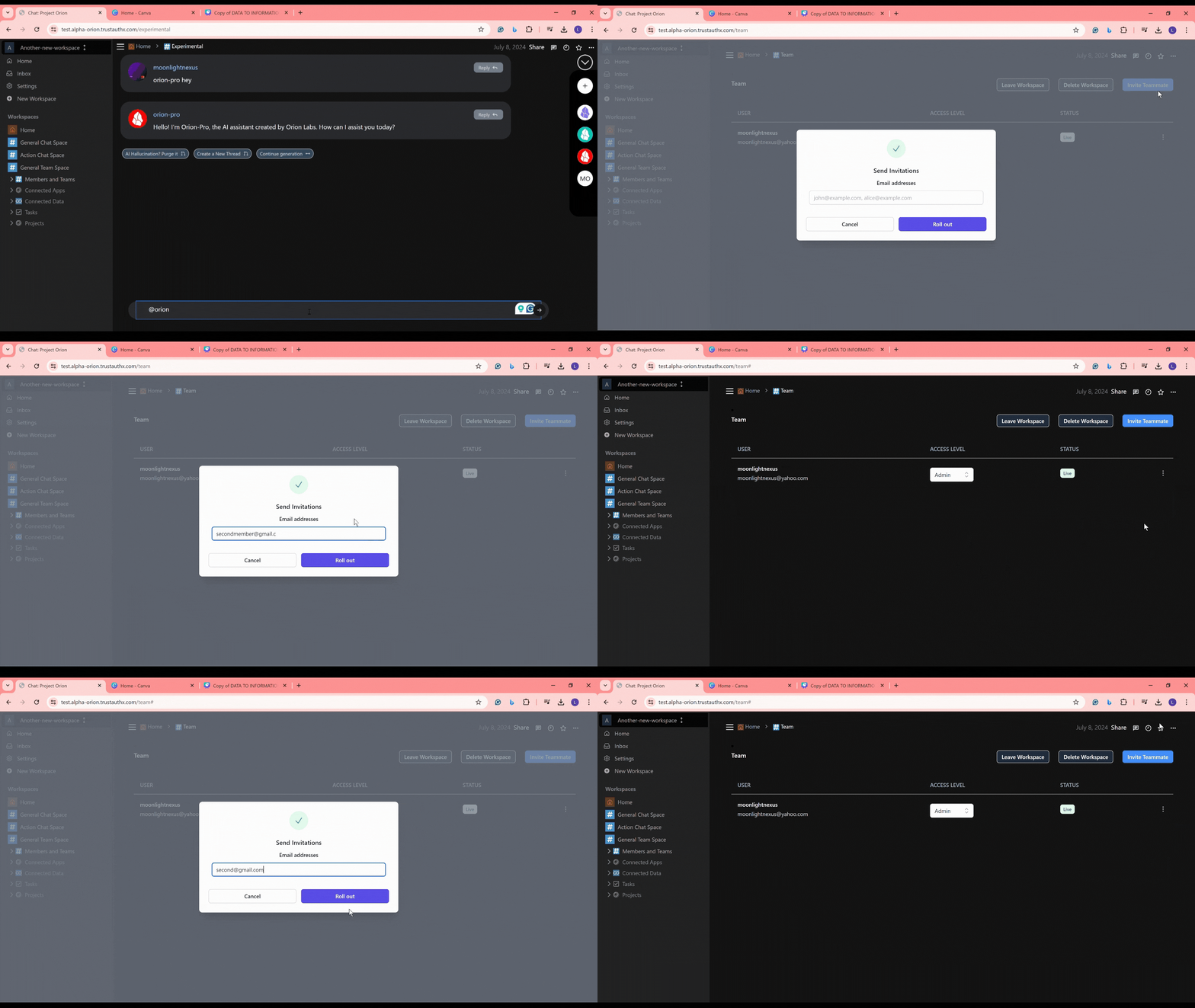
Prerequisites
Important: Both you and the user you're inviting must have an Orion account.
Ensure you're in the correct workspace before inviting users. Check the dropdown menu in the top left corner of your Orion dashboard.
Invitation Process
Step 1: Access Invitation Options
You have two ways to start the invitation process:
- Click on the "Members and Teams" dropdown in the left panel.
- Select "Add More" from the dropdown menu.
- A popup will appear for adding new members.
Step 2: Enter User Details
In the invitation popup:
- Type in the email address of the user you want to invite.
- Click the "Roll Out" button to send the invitation.
Step 3: Manage Invited Users
After inviting users, you can manage them in your workspace:
- Click on the "Core Team" button inside the "Members and Teams" section.
- Here, you'll find options to:
- Add new members
- Remove existing members
- Leave the workspace
- And more!
Quick Tips 💡
- Periodically review your team members to ensure workspace security.
- Assign appropriate roles to new members based on their responsibilities.
- Consider sending a welcome message to new members in the chat space.
Troubleshooting
If you encounter any issues during the invitation process, try these steps:
- Double-check the email address for accuracy.
- Ensure you have the necessary permissions to invite users.
- Check your internet connection and refresh the page.
If problems persist, don't hesitate to contact our support team for assistance.
By following these steps, you'll be able to easily invite and manage team members in your Orion workspace. Remember, a well-organized team is key to maximizing productivity and collaboration! 🚀