Sharing Files Among Team or Organization
Sharing Files Among Team or Organization ⚠️🔄🔒
Orion makes it easy to share files within your team or across your entire organization. Follow these steps to ensure smooth collaboration and efficient information sharing.
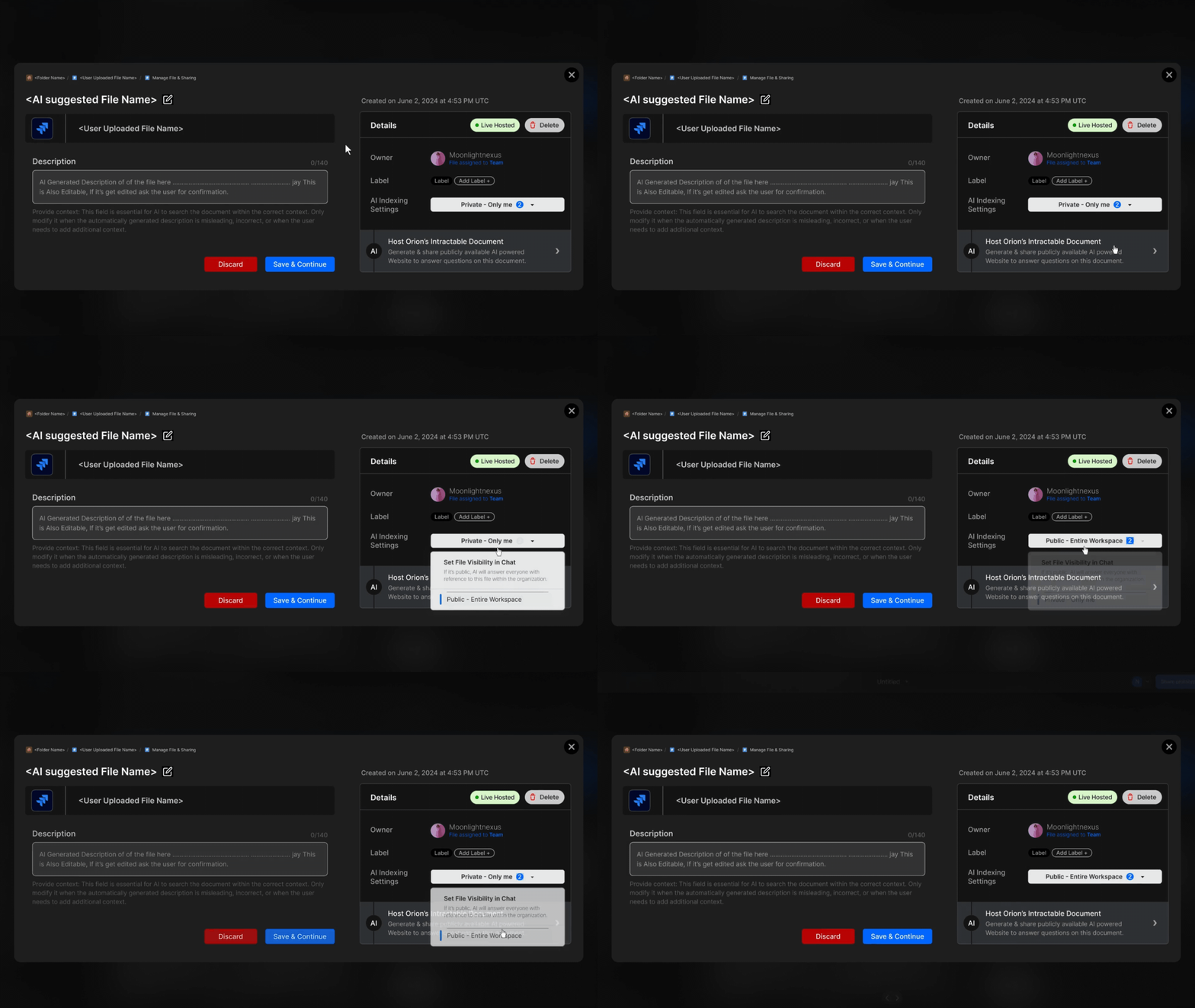
How to Share a File
Step 1: Access Connected Data
Click on the "Connected Data" tab in the left panel.
Step 2: Select File Vault
Choose the appropriate vault:
- "Private Files" for personal files
- "Public Files" for organization-wide files
- "Team Files" for team-specific files
Step 3: Locate the File
Navigate through the folders to find the file you want to share.
Step 4: Open File Management Console
Click the "Manage File" button next to the file. This will open the file management console.
Step 5: Adjust AI Indexing Settings
In the "Details" card on the right side:
- Find the "AI Indexing Settings" dropdown
- Select the desired permissions scope for sharing
Choose the appropriate scope to control who can access and use the file in AI-powered features.
Step 6: Save Changes
Click the "Save & Continue" button to apply your sharing settings.
File Sharing Best Practices
- Regularly review shared file permissions
- Use descriptive file names for easy identification
- Organize shared files into logical folder structures
Troubleshooting Sharing Issues
If you encounter problems while sharing files:
- Verify your permissions for the selected file vault
- Ensure the recipient has the necessary access rights
- Check that the file size doesn't exceed sharing limits
For persistent sharing issues, please contact our support team for assistance.
By mastering file sharing in Orion, you'll enhance collaboration, streamline workflows, and ensure that the right information reaches the right people at the right time. Happy sharing! 🤝📂