Checking Orion-Generated Reports
Exploring Orion-Generated Reports 📊
Orion's intelligent reporting system keeps you informed about your organization's activities. Let's dive into how you can access and understand these comprehensive reports.
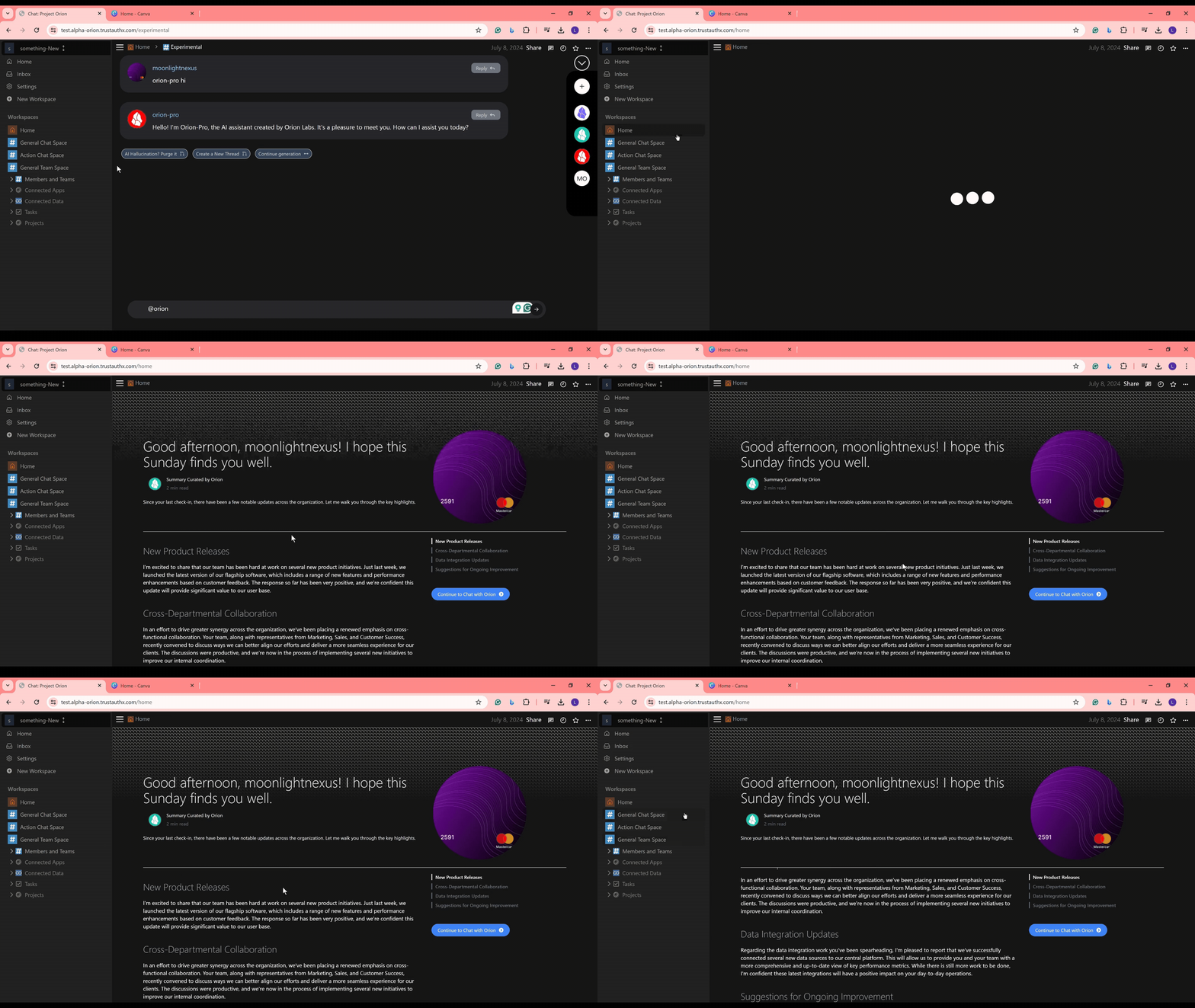
Accessing Your Reports
Auto-Update: Orion automatically refreshes your reports with the latest data each time you view them, ensuring you always have up-to-date information.
How to View Your Reports
Step 1: Navigate to Home
Look for the "Home" tab in the left sidebar menu of your Orion dashboard.
Step 2: Click on Home
Click on the "Home" tab to access your personalized report dashboard.
Step 3: Wait for Data Refresh
Orion will automatically pull the latest data since your last visit, ensuring your report is current.
Understanding Your Report
Your comprehensive report is divided into four key sections:
Organizational Updates: Get a bird's-eye view of significant changes and developments across your entire organization.
Maximizing Report Insights
- Regularly check your Home tab to stay updated on organizational activities.
- Pay attention to trends and patterns across different report sections.
- Use the insights from reports to inform your decision-making and prioritize tasks.
Troubleshooting
If you encounter issues with your reports:
- Ensure you're connected to the internet for the latest data pull.
- Check if you have the necessary permissions to view all report sections.
- Try refreshing the page if the report seems outdated.
- AI will give incorrect and General report in Demo modes because source Data will be unavailable.
If problems persist, reach out to our support team for assistance.
By leveraging Orion's auto-generated reports, you'll stay informed about crucial organizational activities, team progress, and personal notifications. This knowledge empowers you to make data-driven decisions and maintain a pulse on your entire workspace. Happy reporting! 📈