Managing Files and Documents in Orion
Managing Files and Documents in Orion 📁
Orion offers a robust document management system to keep your files organized, accessible, and secure. Let's explore the different types of file vaults and how to manage your documents effectively.
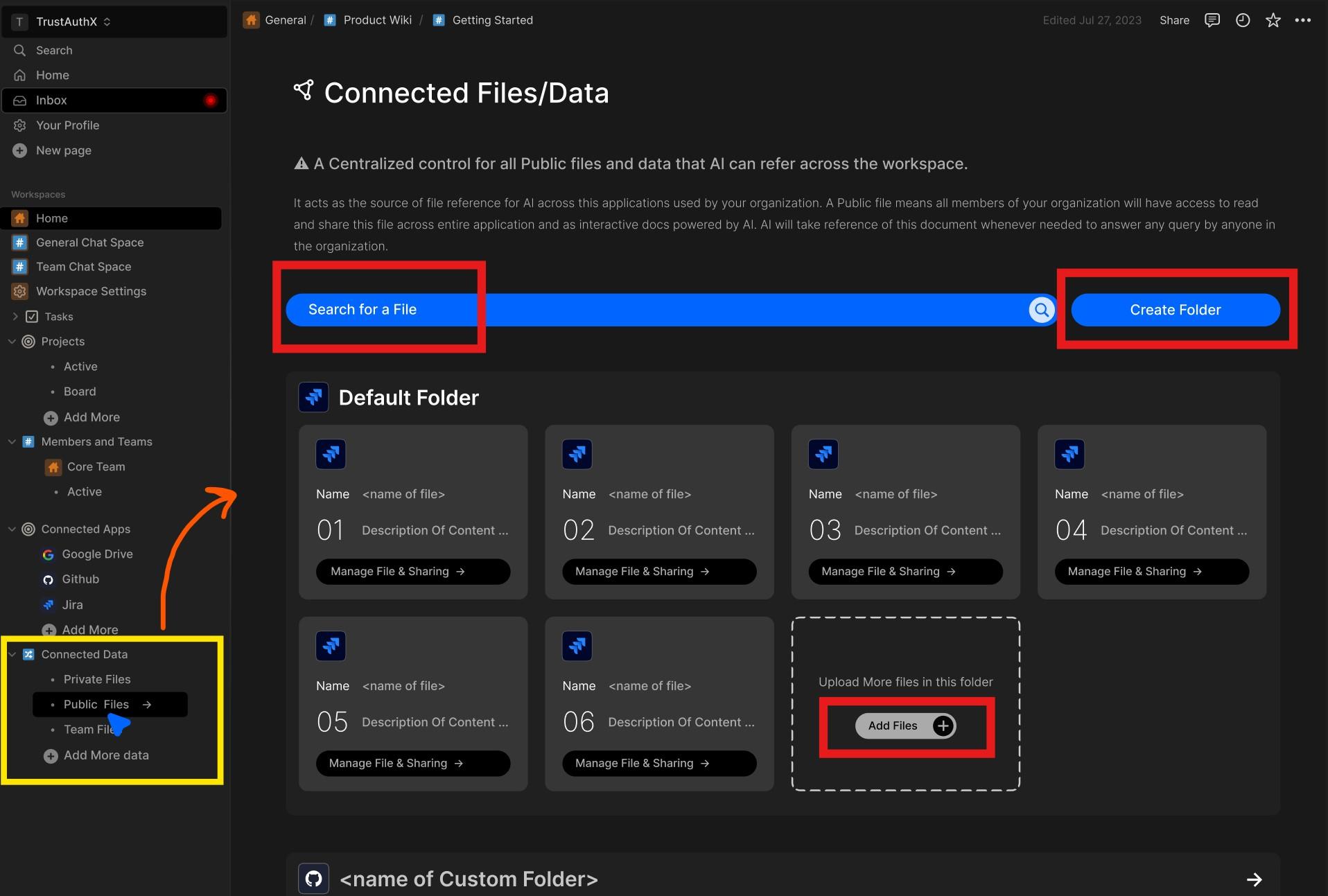
Types of Document Vaults
Orion provides three distinct file vaults, each with its own set of permissions:
Private Files: Your personal file vault with restricted access.
- Accessible only to you
- Can be queried by AI in your private Actions space
- Includes resources shared with you by your organization and team
- You control sharing and transfers between vaults
- Store sensitive personal documents
- Work on drafts before sharing with the team
File Management Features
Orion provides robust folder features to help you maintain your files in a neat and organized manner across all vaults.
How to Upload a File
Step 1: Access Connected Data
Click on the "Connected Data" tab in the left panel.
Step 2: Choose File Scope
Select the appropriate scope for your file:
- "Public Files" for organization-wide access
- "Private Files" for personal access
- "Team Files" for team-specific access
Step 3: Select or Create Folder
A page will appear with a default folder. You can:
- Create a new folder
- Select an existing folder
Step 4: Initiate File Upload
Click on the "Add files" button in the blank card. A popup will appear, prompting you to upload a file from your device.
Step 5: Review AI-Generated Information
After uploading, a main popup will display:
- AI-generated description of the file
- AI-generated name for the file
Only modify the AI-generated information if it's incorrect or you want to add context missed by the AI.
Step 6: Confirm Upload
Click "Confirm" to complete the upload process.
Using Uploaded Files
Once uploaded, you can reference the document in the Actions chat space according to the scope you chose:
- Private files in your personal Actions space
- Public files in the organization-wide Actions space
- Team files in the team-specific Actions space
File Management Tips
- Regularly review and organize your files to maintain a clean workspace.
- Use descriptive folder names to easily locate files.
- Periodically review file permissions to ensure proper access control.
Troubleshooting
If you encounter issues while managing files:
- Ensure you have the necessary permissions for the chosen file vault.
- Check your internet connection if uploads are failing.
- Verify file size and type compatibility with Orion's system.
For any persistent issues, don't hesitate to contact our support team.
By effectively managing your files and documents in Orion, you can ensure easy access to important information, maintain organization, and collaborate efficiently with your team and organization. Happy file managing! 📂🚀